
Timing, cues and auto alignment
Everything in an episode is timed relative to your words. A cue is the moment a script line starts in your recording; word times follow from it. Scenes start on lines and elements enter on words:
scenes:
  - at: l3 # the scene starts with line 3
    elements:
      - use: bucket
        enter: { at: "l3:'bucket'" } # the element enters on the word "bucket"
Re-record a sentence, move its cue, and every animation follows.
Time expressions
| Form | Meaning |
|---|---|
12.5s (or a YAML number 12.5) | absolute seconds |
l7 | cue start of line l7 |
l7.end | start of the next line − 0.15 s |
l7:'timeout' | first word matching "timeout" (punctuation, tatweel and diacritics ignored) |
l7:'request'#2 | second match |
l7.3 | the 4th word (0-based) |
@hook, @hook.end | a scene's start / end |
any of the above +0.4 / -0.2 | offset in seconds |
Quote YAML strings that contain : or ', for example at: "l3:'bucket'". Prefer word expressions to absolute seconds: words survive re-recording. The full list is in Writing episodes.
Before you record: draft cues
A new episode gets draft cues, estimated from the length of each line (about 13 characters per second plus a short gap). The preview plays with realistic timing, and validation already checks pacing. Write them with reelforge cue <id> --draft, the Draft cues button, or the draft_cues tool.
Recording tips
- Record in a quiet room, 20–30 cm from the microphone. Any sample rate works; ReelForge masters the loudness for you (−14 LUFS).
- Read one script line per breath and leave a short pause (0.3–0.5 s) between lines. Pauses make marking faster and give animations room.
- Re-recording later? Upload the new take: ReelForge warns that the voice changed so you can re-check the cues.
- Recorded on a phone or in a noisy room? Turn on Clean up noise (episode settings, or
audio: { denoise: true }, orreelforge render --denoise). RNNoise removes hiss, hum and room noise from the voice before mastering; in tests it lowers the noise between sentences by about 15 dB without changing the voice level.
Automatic cues
Click Auto-mark from voice in Cues mode, Auto cues on the dashboard, or run reelforge align <id>. ReelForge already knows the script, so it only has to find where each line and each word starts in the recording. Then listen through once and fix any line by ear (amber lines are the ones it was least sure about). The result is one undo step (⌘/Ctrl+Z).
Two engines:
| Engine | Needs | Speed (1 min of voice) | How it works |
|---|---|---|---|
| Pauses (default) | nothing | ~0.05 s | Finds the pauses, then splits the recording into the script's lines so each line's length matches its text (dynamic programming). Words follow the syllables. |
| Whisper (optional) | reelforge align --setup once (~180 MB) | ~20 s on a laptop CPU | A speech model hears the words; only its timings are used, matched to your script, so dialects and English terms in Arabic don't matter. Best for words and music. |
With the optional models installed, a 2 MB voice-activity model (Silero VAD) also tells speech from music, breaths and room noise. Measured on recorded speech with known timings, every line lands within 100 ms (average 15 ms), with or without background music. Words land within 100 ms about 80% of the time, so give precise hits (a stamp on one exact word) a listen in word mode.
reelforge align --status shows what is installed. Models live in your user cache (%LOCALAPPDATA%\reelforge, ~/Library/Caches/reelforge or ~/.cache/reelforge; $REELFORGE_CACHE moves it) and are never used while rendering. Cues you marked by hand are never replaced unless you confirm (--force on the command line).
| Option | Meaning |
|---|---|
--engine <e> | auto (Whisper when installed, else pauses), dsp or whisper |
--model <size> | Whisper model: tiny, base (default) or small |
--no-vad | Detect speech by energy only |
--no-words | Line cues only |
--force | Replace cues you marked by hand |
--dry-run | Print the result without writing cues.json |
Cues mode
Open the editor and switch to Cues (Alt+2), or click Mark cues on the dashboard. The script is listed on the right, the playhead and waveform are on the timeline.
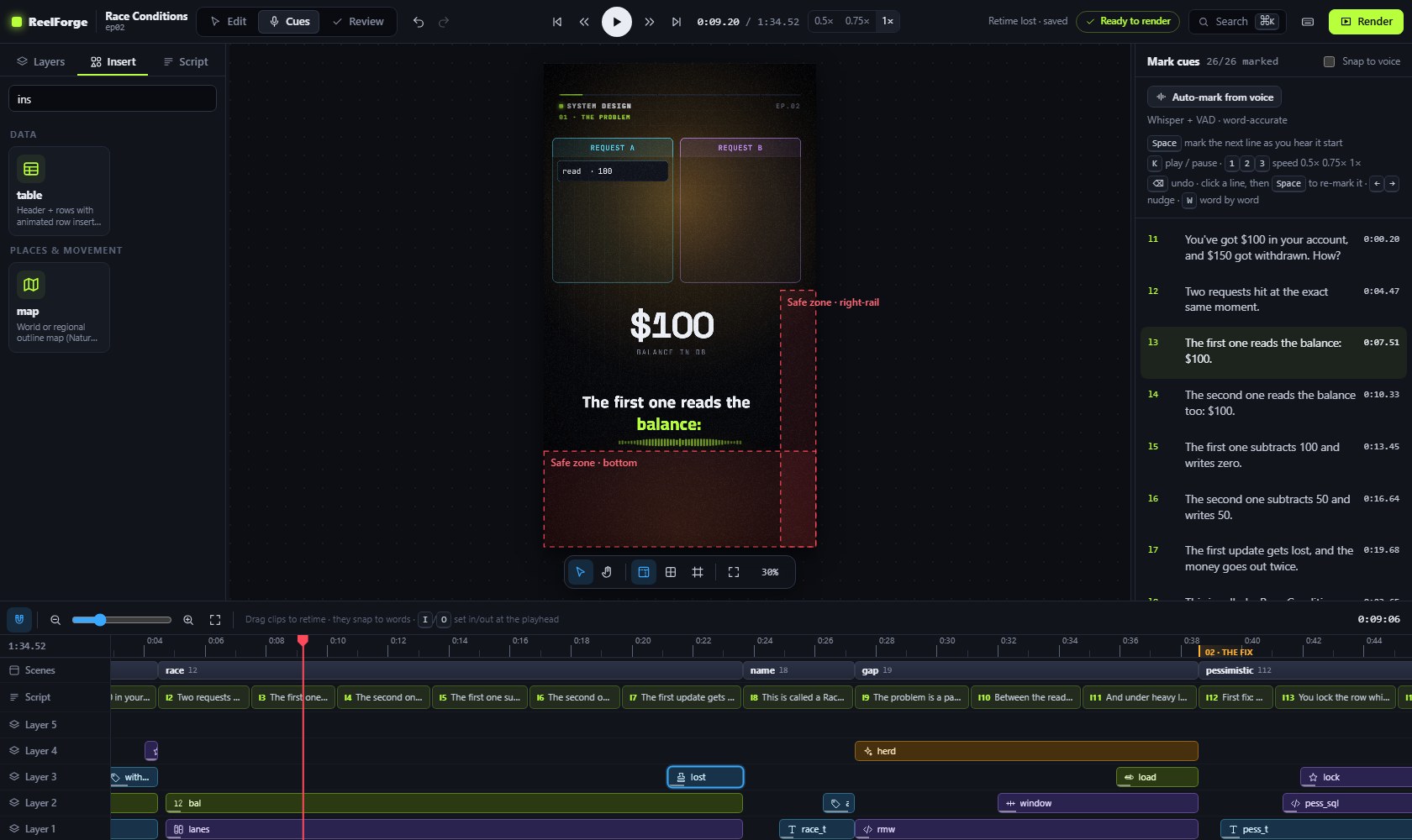
| Key | Action |
|---|---|
| Enter / K | Play / pause |
| 1 / 2 / 3 | Speed 0.5× / 0.75× / 1× (slower = more accurate) |
| Space | Mark the next unmarked line at the playhead |
| Click a line or ↑ / ↓ | Select a line to re-mark it (then press Space) |
| ← / → | Nudge the selected cue by 50 ms (Shift: 10 ms) |
| Backspace | Undo the last change |
| S / A | Snap the selected cue to the nearest voice onset / toggle auto-snap |
| G | Jump to the selected cue |
| W | Word mode: mark each word of the selected line with Space |
| J / L, , / . | Back / forward 1 s, previous / next frame |
Every change is saved instantly to cues.json and can be undone with ⌘/Ctrl+Z. Lines out of order are shown in red. You can also drag a line's clip on the Script track of the timeline, in Edit or Cues mode.
Word mode
By default ReelForge estimates when each word starts from its length. For precise hits (a stamp landing exactly on “twice”), select the line, press W, play, and press Space on each word.
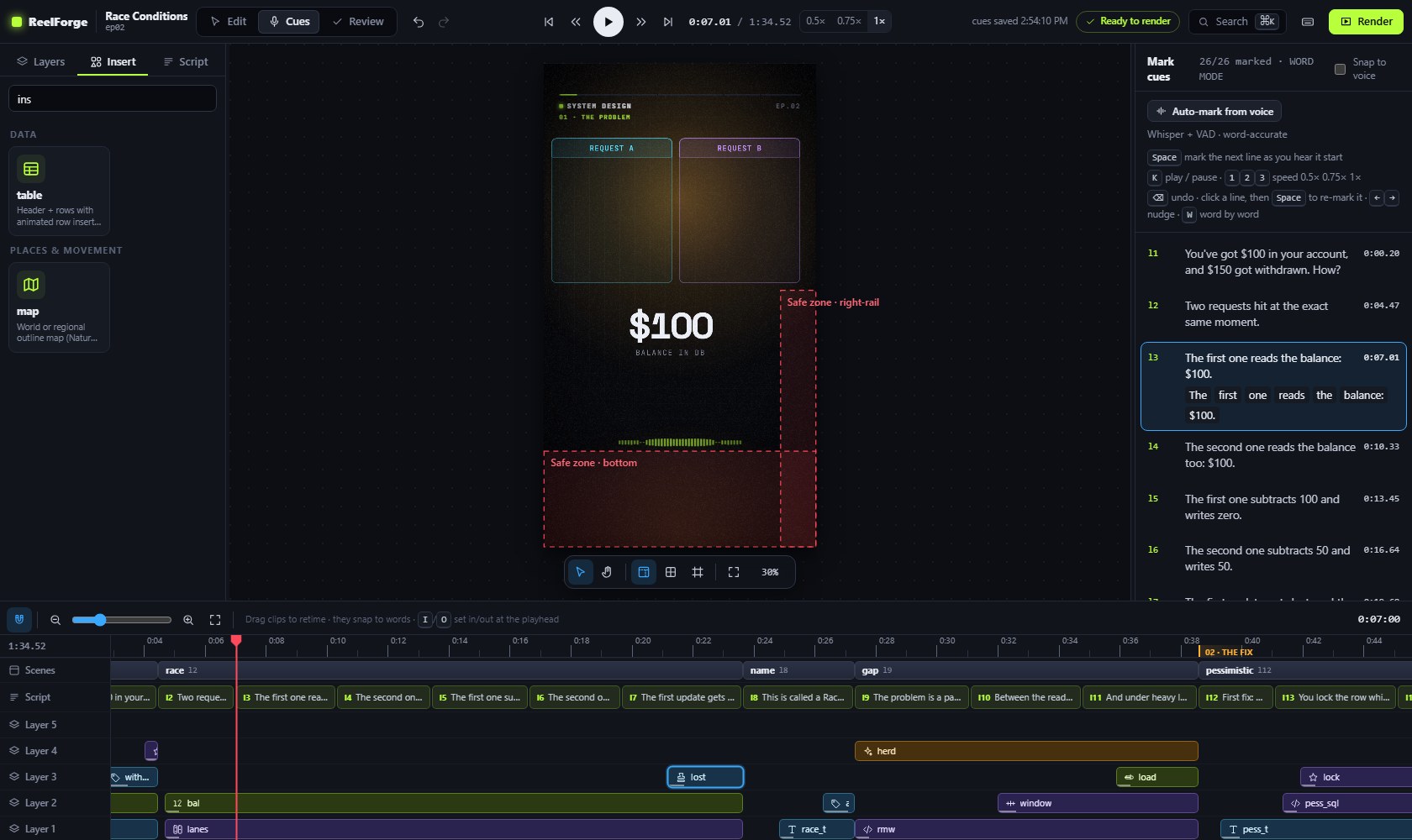
Pacing checks
Validation rule V-14 warns when a line is spoken faster than about 3.5 words per second (too fast to read in captions) and when the hook starts after 3 s; it also reports silences of 1.5 s or more. Split long lines, or slow down when you record.